VPN killswitch and Windows 7
Lately I’ve been having fun with my Nokia Booklet netbook and Windows 7, and I wanted all Internet traffic blocked when there is no active VPN connection (VPN killswitch); this can be done with just Windows Firewall.
There are several steps involved:
- Download and install OpenVPN GUI for Windows 7 (make sure you don’t install OpenVPN Connect by mistake).
- Get a OpenVPN profile from a VPN provider (Proton, Njal.la, Riseup).
- Setup all VPN traffic to be allowed.
- Setup all other network traffic to be blocked.
- Fine-tune the firewall rules.
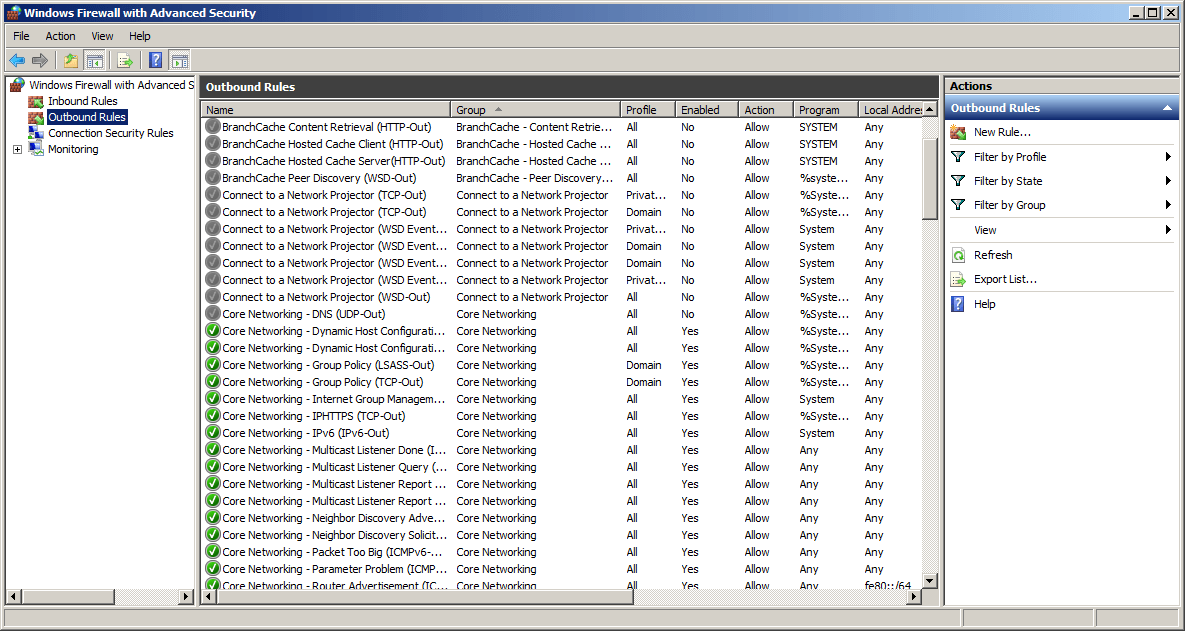
Go to Start Menu -> All Programs -> Administrative Tools -> Windows Firewall with Advanced Security. In the left panel click on Outbound Rules and once the outbound firewall rules are listed, click on New Rule in the right panel.
On the Rule Type screen select the Program radio button and click the Next button.

On the Program screen click on Browse and select the path to the openvpn.exe program (and not openvpn-gui.exe), make sure the This program path radio box is selected and after that click the Next button.

On the Action screen select the Allow this connection radio box and after that click the Next button.

On the Profile screen make sure you select all the three checkboxes (Domain, Private, Public) so that the rule applies to all the profiles. Click the Next button, give the rule a simple name like OpenVPN traffic allow and click Finish.

Basically now we have a rule that allows all VPN traffic under all network profiles, and now we need to block all the other traffic. Click on the Windows Firewall with Advanced Security item in the left panel and from the middle panel select the Windows Firewall Properties link.

A new dialog box with multiple tabs will open. On the Domain Profile tab select Block on the Outbound connections option. On the Private Profile tab select Block on the Outbound connections option. On the Public Profile tab select Allow (default) on the Outbound connections option. Click the OK button when you’re done.


Make sure you’re not connected to a VPN server, open Command Prompt and ping an external IP address. This should be the result, singnalling that all outgoing traffic is blocked:
c:\> ping 9.9.9.9
Pinging 9.9.9.9 with 32 bytes of data:
General failure.
General failure.
General failure.
General failure.

Ping statistics for 9.9.9.9:
	Packets: Sent = 4, Received = 0, Lost = 4 (100% loss),
c:\>
Now you can select a OpenVPN profile from OpenVPN GUI, to connect to the specified server, and once the connection is established ping (and all network traffic) should be working again.
If your OpenVPN profile doesn’t do any DNS resolution (the remote field has an IP adress and not a hostname) you can disable DNS resolution outside VPN traffic too. Clic on Outgoing Rules in the left panel, find the Core Networking - DNS (UDP-Out) rule, right click on it and select Disable Rule.

If your VPN traffic gets interrupted (laptop sleep, network problems) there will be no Internet connections afterwards until you reconnect to the VPN server.
permalink http://sizeof.cat/post/vpn-killswitch-and-windows-7/
created February 20, 2024
words 513
tags #privacy, #vpn, #firewall, #windows 7
A series is usually a collection of multiple website posts about the same subject and dependent of each others. This article is from the Nokia Booklet 3G series:


