My Apple iBook G4 - software

Contents
This is the second part of the “My Apple iBook G4” series of articles, and it’s all about the software you can run on your iBook G4, under Mac OS X 10.5.8 Leopard.
I’ll try to link to the original sites or Archive.org copies first, for a bit of safety.
For more software, browse the PowerPC Software Archive, Macintosh Garden, Macintosh Repository, Macintosh Garden Archive, my personal software archive and other similar websites.
If you want to use an external screen, Screen Spanning Doctor by Rute Moeller is a must-have. iBooks can’t display an extended desktop on external screens (only clone screen), this function is locked in the firmware so you (actually your parents) bought the more expensive PowerBooks. But the function is available and your iBook can extend the desktop on an external screen once you use Screen Spanning Doctor to unlock it.
- 1Password 3.5.9
- Ableton Live 4.1.2
- Apple Aperture 2 (with 2.1.4 update)
- Adium 1.3.10
- Apple iLife ‘09 (with 9.0.4 update)
- Apple iWork ‘09 (with 9.0.5 update)
- Apple Xcode 3.1.4
- Adobe Creative Suite 4 (CS4)
- Adobe Lightroom 2.7
- Adobe Reader 9.4.0
- Arduino IDE 1.0.4
- Autodesk Maya 8.5
- Avid Media Composer 3.0.5
- Blender 2.63a
- Calibre 0.7.28
- Coda 1.7.5
- Colloquy 2.3
- DEVONthink Pro 2.3.5
- DOSBox 0.74
- Eclipse IDE Juno
- Fetch 5.6
- FileMaker Pro 11.0.4.401
- Filezilla 3.7.3
- Flux 1.1
- ForkLift 1.7.8
- GPGTools 20120318
- IntelliJ IDEA 8.0
- iTerm2 2.0
- KeePassX 0.4.3
- LibreOffice 5.1.0
- Little Snitch 2.5.4
- MacPorts 2.10.5
- MAMP 1.9.6.1
- Microsoft Office 2004
- Microsoft Office 2008
- Microsoft Virtual PC 7 (with 7.0.3 update)
- NetBeans IDE 6.8
- NetNewsWire 3.1.7
- Pacifist 3.0.10
- Pixelmator 1.5.1
- ScummVM 2.9.0
- SheepShaver 2.4
- Stone Create 14.4.1
- SyncTerm 0.9.2
- TextMate 1.5.10
- The Unarchiver 3.2
- Toast Titanium 10.0.9
- Transmit 4.2
- Transmission 2.22
- TrueCrypt 7.1a
- VLC 2.0.10
- Wireshark 1.9.2
MacPorts
A special section for MacPorts, since this is your gateway to all the GNU tools (and not only), including GCC 14. Download the last version of MacPorts for Mac OS 10.5 Leopard, install it, place your iBook somewhere chilly and run in OS X’s Terminal app:
$ sudo port install gcc14
This is the point where I noticed the power of Noctua’s thermal paste (no, this is not an ad): when I ran the install on the initial hardware (256MB RAM, 30GB HDD, old thermal pads) the temperature was steady at 70 degrees Celsius (for three days) and the fan ran non-stop. After I replaced the old thermal pads with new thermal paste, on the new hardware (1.256GB RAM, 256GB SSD, Noctua paste), the temperature was oscillating between 50 and 55 degrees Celsius, and the fan never started. Nice, eh? Actually, the only time the fan started by now is after Leopard’s install, when Spotlight’s indexing ran amok for a few hours.
After gcc 14 is compiled and activated, you can install everything (almost everything) from MacPorts’ archive (tmux, irssi, coreutils, grep, htop, git, gnupg, neofetch, jq, etc). The reason it takes so long is that MacPorts first compiles and installs a gcc 10 bootstrap and uses that to compile gcc 14.
OpenVPN
You can use Tunnelblick 3.5.25 to connect to an OpenVPN server, the problem is the built-in OpenVPN version is way too old (it’s 2.3.18, and doesn’t have support for the AES-256-GCM cypher), so you will need to compile a newer version using MacPorts.
$ sudo port install openvpn2
This will compile OpenVPN 2.6.12 with OpenSSL 3.4.0 support built in, and install it in /opt/local/sbin/openvpn2. Next, replace the OpenVPN executable inside Tunnelblick.app with the one you just compiled:
$ sudo rm /Applications/Tunnelblick.app/Contents/Resources/openvpn/openvpn-2.3.18/openvpn
$ sudo cp /opt/local/sbin/openvpn2 /Applications/Tunnelblick.app/Contents/Resources/openvpn/openvpn-2.3.18/openvpn
Tunnelblick will complain about package integrity, but now you can import OpenVPN profiles into Tunnelblick and connect to VPN servers as desired.
Or, you can skip Tunnelblick and use just its tun/tap kernel extensions. For connecting use openvpn2 from MacPorts.
$ sudo kextload /Applications/Tunnelblick.app/Contents/Resources/tun-20111101.kext
$ sudo kextload /Applications/Tunnelblick.app/Contents/Resources/tap-20111101.kext
$ sudo openvpn2 <PATH_TO_OPENVPN_FILE>
If you go this path, copy the Tunnelblick tap and tun kexts to /System/Library/Extensions and upon system reboot you can ditch Tunnelblick and delete it.
$ sudo mv /Applications/Tunnelblick.app/Contents/Resources/tun-20111101.kext /System/Library/Extensions/
$ sudo mv /Applications/Tunnelblick.app/Contents/Resources/tap-20111101.kext /System/Library/Extensions/
$ sudo chown -R root:wheel /System/Library/Extensions/tun-20111101.kext
$ sudo chown -R root:wheel /System/Library/Extensions/tap-20111101.kext
You only need to do this once and the kexts will be automatically loaded on system restart. You can also load just the kext that’s needed for your network configuration (usually tun).
Tor
You can build and install latest version of tor from MacPorts, it will work just fine. If you want a GUI for tor, use Vidalia from the same MacPorts, but be aware of the fact that it’s unmaintained.
Encryption
Don’t forget to turn on Filevault 1 encryption, it only encrypts your user directory but it’s better than nothing.
TrueCrypt 7.1a work great for encrypting volumes, and if it’s paired with VeraCrypt 1.25.9 you can use both to encrypt and decrypt volumes between the old and a newer OS (a volume created by TrueCrypt 7.1a can be opened and written with VeraCrypt 1.25.9, and vice versa). VeraCrypt 1.25.9 is the last version that supports TrueCrypt.
Web browsers
Another special section, because this is what interests most people: browsing the web. And the situation is grim.
- Fukurou is my personal TenFourFox fork. Check out the project page for more info.
- Aquafox is the most modern version, based on TenFourFox, last version is 2.1. You will want uBlock Origin version 1.16.4.30 or uMatrix 1.4.4.
- TenFourFox is no longer updated, last version is FPR32.5 based on Firefox 78 ESR.
- Safari 5.0.6, Apple’s official web browser for Leopard, useless on anything modern. No modern cryptography.
- OmniWeb 5.11.2, beautiful but useless on anything modern.
- Old web browsers: Amaya 11.3.1, Camino 2.1.2, Firefox 3.6.28, Netscape Navigator 9.0.0.6, NetSurf 2.7, Opera 10.63, SeaMonkey 2.26, but as you can probably guess they are mostly unusable on the modern Internet.
You can’t browse the “new” GitHub with them, but you can download releases from any GitHub project if you change the URL. Let’s say you want to download Aquafox, but the release page will never work in a web browser on your iBook. This page does though, so al you need to do is add expanded_assets/ after releases/ but before version number.
Basically
https://github.com/BlackBirdLC/Aquafox/releases/v2.1
becomes
https://github.com/BlackBirdLC/Aquafox/releases/expanded_assets/v2.1
This works for any GitHub project that has releases.
If you want to add more Search providers, you can manually add the OpenSearch endpoint (by pasting the line below into Aquafox’s console):
- Yandex:
window.external.AddSearchProvider('https://yandex.com/opensearch.xml'); - Brave Search:
window.external.AddSearchProvider('https://cdn.search.brave.com/serp/v2/_app/immutable/assets/opensearch.BqerUIGT.xml'); - Startpage:
window.external.AddSearchProvider('https://www.startpage.com/sp/cdn/opensearch/en/opensearch.xml'); - Ecosia:
window.external.AddSearchProvider('https://www.ecosia.org/static/opensearch.xml'); - Baidu:
window.external.AddSearchProvider('https://www.baidu.com/content-search.xml'); - Sogou:
window.external.AddSearchProvider('https://www.sogou.com/content-search.xml');
Another useful addon is UserAgent Switcher by Chris Pederick, together with my useragents list. Overbite brings back Gopher support to Firefox. uBlock Origin is here, Chatzilla works, NoScript works, FireFTP and FireSSH work. Classic Theme Restorer restores the old Firefox theme.
More addons can be found here.
Email clients
You know I said the web browser situation is grim? The email client situation is worse, you can choose between Apple Mail, Mozilla Thunderbird (3.1.20) and TenFourBird (38.9.0).
From Macports you can build and install Sylpheed too, and that will be your best email client unless you’re a fan of mutt. TenFourBird has support for Enigmail too, so you can send encrypted emails. Sylpheed can do that too by default.
Aperture 2
Aperture version 2 has some requirements that cannot be fulfilled by an iBook G4 (higher CPU freq, specific GPU), so in order to install and run it you need to alter those.
1. Download
Download a DVD image and convert it to a read/write DVD image using Disk Utility (so you can modify files on the image).
2. Install
Removing the requirements checks is done inside the Aperture.mpkg/Contents/Aperture.dist file on the read/write image after mounting it in Finder, either by editing it inside a text editor and removing all lines between 79 and 124, including, or by overwriting the file with this one that already has the requirements check removed. For full transparency, the lines to be removed are this ones:
	if ( !isIntel() )
	{
		//	Allow install on all Intel machines
		//	Allow install if G5 1.6 GHz or better
		//	Allow install if PowerBook G4 1.25 GHz or better
		if (!checkCPUFrequency(1590000000))
		{
			var model = system.sysctl('hw.model');
			var regexp = /PowerBook/;
			if (!checkCPUFrequency(1240000000))
			{
				my.result.message = system.localizedString('ERROR_INCOMPATCPU');
				my.result.type = 'Fatal';
				return false;
			}

			if (!regexp.test(model)) {
				my.result.message = system.localizedString('ERROR_INCOMPATCPU');
				my.result.type = 'Fatal';
				return false;
			}
		}

		// All intel machines have sufficient graphics cards
		if(0 != system.runOnce("DetectGraphicsCard"))
		{
			my.result.message = system.localizedString('ERROR_INCOMPATVIDEO');
			my.result.type = 'Fatal';
			return false;
		}

		var badCards = new Array("GeForce FX Go5200");
		var agpDevices = system.ioregistry.matchingClass("IOAGPDevice");
		for(i=0;i<agpDevices.length;i++)
		{
			for(j=0;j<badCards.length;j++)
			{
				if ( badCards[j] == agpDevices[i].model )
				{
					my.result.message = system.localizedString('ERROR_INCOMPATVIDEO');
					my.result.type = 'Fatal';
					return false;
				}
			}
		}
	}
Once the file is edited and saved, or replaced, you can start the install by doubleclicking on the Aperture.mpkg file.
3. Update
Don’t start Aperture when the install is finished, download and install the 2.1.4 update.
4. Patch
If you run Aperture now it will still bitch that your system is below the minimum requirements, as there is one requirements check inside the application executable too, and we need to remove that. The entry point is the function performRequirementsCheck and that needs to be patch out.

Open Terminal.app or iTerm2 and enter the commands below:
$ cd /Applications/Aperture.app/Contents/MacOS
$ cp Aperture Aperture_backup
$ echo 006f9A80: 70 65 72 66 6F 72 6D 4C 69 63 65 6E 73 65 43 68 | xxd -r - Aperture
$ echo 006f9A90: 65 63 6B 00 00 00 00 00                         | xxd -r - Aperture

The MD5 hash of the original file (Aperture_backup) should be 943c7b93890f132a125475d67719e6d3, and the MD5 of the modified file should be 24fdb347f1a801f88c980746531fe66c. If it’s not, you did something wrong. Keep in mind that those changes are for version 2.1.4 (which you already installed, didn’t you?), and not the original Aperture 2 (for that version, the offset is 006D21B0 but you’re on your own). The Aperture_backup file is just a backup in case something goes wrong, you can copy it back over the original file:
$ cd /Applications/Aperture.app/Contents/MacOS
$ cp Aperture_backup Aperture Aperture
If everything goes well and you can run Aperture without complaining about system requirements, you can delete the backup file:
$ rm -f /Applications/Aperture.app/Contents/MacOS/Aperture_backup
Checking the MD5 of a file can be done using the md5 utility:
$ cd /Applications/Aperture.app/Contents/MacOS
$ md5 -q Aperture_backup
943c7b93890f132a125475d67719e6d3
$ md5 -q Aperture
24fdb347f1a801f88c980746531fe66c
If you want to do everything in one go, here is a small script by yours truly that checks the MD5 of the original executable, and if it’s correct it patches the Aperture executable. But you should be aware that downloading and executing files off the Internet is not a really smart idea.
#!/bin/bash
cd "/Applications/Aperture.app/Contents/MacOS" || exit
md5 -q Aperture | grep -i "943c7b93890f132a125475d67719e6d3" || exit
cp Aperture Aperture_backup
echo 006f9A80: 70 65 72 66 6F 72 6D 4C 69 63 65 6E 73 65 43 68 | xxd -r - Aperture
echo 006f9A90: 65 63 6B 00 00 00 00 00                         | xxd -r - Aperture
iMovie ‘09
If you try to install iLife ‘09, iMovie will be unavailable to install because it “requires” a G5 CPU, which the iBook doesn’t have. But we can patch that requirement the same way we did with Aperture 2 before, first we need to install iMovie from iLife ‘09, then install the 8.0.6 iMovie update, and in the end patch the iMovie executable.
1. Download
2. Install
There are two ways to install iMovie: one with iLife by patching the iLife '09.mpkg/Contents/Distribution.dist file and another by installing iMovie manually.
First method is to open the iLife DVD image and convert it to a read/write DVD image using Disk Utility (so you can modify files on the image). Mount the new image, open iLife '09.mpkg/Contents/Distribution.dist in a text editor, find line 538 and change it from:
<choice id="iMovie" title="TITLE_IMOVIE" description='DESCRIPTION_IMOVIE' enabled="canHasiMovie() && shouldAllowiMovieChoice()" start_selected="canHasiMovie() && shouldAllowiMovieChoice()">
to
<choice id="iMovie" title="TITLE_IMOVIE" description='DESCRIPTION_IMOVIE' enabled="true" start_selected="true">
Save the file and install iLife normally, ignore the warning that iMovie won’t be installed, and make sure iMovie is selected (it should be).
The second way to install just iMovie is by mounting the iLife DVD and copying the file iLife '09.mpkg/Contents/Installers/iMovie.pkg somewhere (for example your Downloads directory). Right click the iMovie.pkg file you just copied and click on “Show Package Contents”. Navigate inside the Contents directory and open iMovie.dist file in a text editor. Replace everything inside the installationCheck() function (lines 17-23 included) with a single return true line:
		function installationCheck()
		{
			return true;
		}
Save the file and doubleclick on the iMovie.pkg file to install it normally.
3. Update
Next, install the 8.0.6 iMovie update. No checks here, so install the usual way.
4. Patch
When the update is done, open Terminal.app or iTerm2 and enter the commands below:
$ cd /Applications/iMovie.app/Contents/MacOS
$ cp iMovie iMovie_backup
$ echo 0016C268: 4E 80 00 20 | xxd -r - iMovie
$ echo 0016C348: 4E 80 00 20 | xxd -r - iMovie
$ echo 0016C568: 4E 80 00 20 | xxd -r - iMovie
MD5 of the executable installed by the 8.0.6 update (iMovie_backup) should be e0768e71f3fd89048807a7e97693fd6d and the MD5 of the patched executable (iMovie) should be 2564c368dd160e82ba1c5ddad0fb534a.
If you want to do everything in one go, here is a small script by yours truly that checks the MD5 of the original executable, and if it’s correct it patches the iMovie executable. But you should be aware that downloading and executing files off the Internet is not a really smart idea.
#!/bin/bash
cd "/Applications/iMovie.app/Contents/MacOS" || exit
md5 -q iMovie | grep -i "e0768e71f3fd89048807a7e97693fd6d" || exit
cp iMovie iMovie_backup
echo 0016C268: 4E 80 00 20 | xxd -r - iMovie
echo 0016C348: 4E 80 00 20 | xxd -r - iMovie
echo 0016C568: 4E 80 00 20 | xxd -r - iMovie
If everything went well and you can open iMovie without problems, you can remove the backup file:
$ rm -f /Applications/iMovie.app/Contents/MacOS/iMovie_backup
Remember to install AppleIntermediateCodec.pkg too if it’s not installed (in case you didn’t install the whole iLife suite), because it is required for iMovie to work properly.
Avid Media Composer 3.0.5
One of the versions that are currently working (with a caveat, read on) on the PowerPC architecture is 3.0.5. You will need a dongle to run the software because the “crack” only patches the i386 binary slice.
If you don’t trust the cracked binaries (and you’re running Avid Media Composer on an Intel CPU machine), you can patch your own using binary patches (and bsdiff, use MacPorts to install it).
Download my binary patch for AvidMediaComposer and patch your executable (creates a backup file first):
$ mv "/Applications/Avid Media Composer/AvidMediaComposer.app/Contents/MacOS/AvidMediaComposer" "/Applications/Avid Media Composer/AvidMediaComposer.app/Contents/MacOS/AvidMediaComposer_backup"
$ bspatch "/Applications/Avid Media Composer/AvidMediaComposer.app/Contents/MacOS/AvidMediaComposer_backup" "/Applications/Avid Media Composer/AvidMediaComposer.app/Contents/MacOS/AvidMediaComposer" avid_media_composer_2.0.5_AvidMediaComposer_patch.diff
$ chmod +x "/Applications/Avid Media Composer/AvidMediaComposer.app/Contents/MacOS/AvidMediaComposer"
Download my binary patch for SuperPro32 and patch your framework (creates a backup file first):
$ mv /Library/Frameworks/SuperPro32.framework/Versions/A/SuperPro32 /Library/Frameworks/SuperPro32.framework/Versions/A/SuperPro32_backup
$ bspatch /Library/Frameworks/SuperPro32.framework/Versions/A/SuperPro32_backup /Library/Frameworks/SuperPro32.framework/Versions/A/SuperPro32 avid_media_composer_2.0.5_SuperPro32_patch.diff
$ chmod +x /Library/Frameworks/SuperPro32.framework/Versions/A/SuperPro32
VirtualPC 7
Start by installing Microsoft VirtualPC 7 for Mac, which comes as version 7.0.0, 7.0.1 or 7.0.2, depending from where you download it. After it’s installed, regardless of which version you installed, download and install the 7.0.3 update.
If you start VirtualPC now you’ll notice a bouncing icon in the dock, that’s for the network kext (and that is probably built for Tiger and not Leopard), so to get rid of that you will need to edit the /Library/Extensions/VirtualPCNetworking1040.kext/Contents/Info.plist file. Near the end of the file, after line 33 and before line 34, add the following code:
	<key>LSUIElement</key>
	<string>1</string>
Basically, the end of the file should look like this (notice the two lines added):
	<dict>
		<key>com.apple.kpi.bsd</key>
		<string>8.0.0b2</string>
		<key>com.apple.kpi.libkern</key>
		<string>8.0.0b2</string>
		<key>com.apple.kpi.mach</key>
		<string>8.0.0b2</string>
	</dict>
	<key>LSUIElement</key>
	<string>1</string>
</dict>
</plist>
Save the file, change ownership to root:wheel and VirtualPC should work fine now.
$ sudo chown -R root:user /Library/Extensions/VirtualPCNetworking1040.kext
Don’t bother with Windows XP, it will be slow, install Windows 2000 Professional SP4 and enjoy a snappy Windows VM in VirtualPC.
For proper networking, make sure that in the VPC Preferences the “Virtual Switch” preference is set to “default”. In the settings for the specific PC you are configuring (i.e., the PC identified in the Virtual PC List) select “settings” then select “networking” and set to “Enable networking” with the Shared Networking button selected. Make sure that the OS X System Preferences are set to enable Internet Sharing (in the Sharing pane). Go into your Mac OS X System Preferences and choose the Sharing panel. Then simply click the box “Share the connection with other computers on Built-in Ethernet”. Start up your PC and then set the Network Connection to be Local Area Connection TCP/IP property settings to “obtain IP/DNS Automatically”.
VirtualPC’s emulated network card is a DEC/Intel 21140-A PCI Ethernet controller.
Autodesk Maya 8.5
Download and install it normally; you will need to activate Maya before using it, and the activation servers are long gone. To crack the activation you will need a Windows machine (XP to 11, any version). Download the crack, extract the archive somewhere on your Windows machine.
Find out the Ethernet mac address from your iBook (not Windows machine):
$ ifconfig en1 | grep -o -E '([[:xdigit:]]{1,2}:){5}[[:xdigit:]]{1,2}' | sed s/://g
AABBCCDDEEFF
Copy the 12 characters into the aw.dat file that you just extracted on your Windows machine, replacing the your_host variable with your mac address:
FEATURE MayaUnltd sgiawd 2008.000 permanent uncounted 0 \
        HOSTID=your_host
Should become:
FEATURE MayaUnltd sgiawd 2008.000 permanent uncounted 0 \
        HOSTID=AABBCCDDEEFF
Run the keygen executable on the modified aw.dat file, inside a command prompt window (on Windows):
awkeygen.exe aw.dat
Now you can copy the modified and cracked aw.dat file to your iBook (anywhere), open /Applications/Autodesk/PCW/apcw.app, choose “I have a license that I need to install”, click Next, choose “I would like to install my license from a file”, click Next, click Browse and select your aw.dat file, check “Install to default license file” and click Next.
Done.
Alternatively, if you can’t or don’t want to run the crack, send me an email with the Ethernet mac address (not the Airport mac or the Bluetooth mac) and I’ll send you the aw.dat file back.
Adobe
If you need Adobe software, for example Photoshop or Illustrator, install the Adobe Creative Suite 4 and not the separate programs (Photoshop CS4 installed separately expires and you need to change your clock to use it).
Lazarus IDE
Lazarus 1.2.6 and FreePascal Compiler (FPC) 2.6.4 work great, install the 3 packages (fpc, fpcsrc and lazarus) and that’s about it.
Panic apps
Coda (last working version is 1.7.5) and Transmit (last version working is 4.2) are very cool for development, unfortunately you can’t activate them for obvious reasons. The only way to use them after the expiration of the trial (14 days for Coda, 7 days for Transmit) is to reset the trial.
Simplest way to do that is to remove one key from each of the Coda and Transmit preferences files: For Coda:
$ defaults delete com.panic.Coda ParserExtensionMap
For Transmit:
$ defaults delete com.panic.Transmit EditorHelperData
For CandyBar:
$ defaults delete com.panic.CandyBar3 ParserExtensionMap
Alternatively, if for some reason the above fix is not working, you can remove the preferences file for either (or both) of them, but be aware that this will reset your configuration for the application.
For Coda:
$ rm -f ~/Library/Preferences/com.panic.Coda.plist
For Transmit:
$ rm -f ~/Library/Preferences/com.panic.Transmit.plist
Omnigroup apps
Omnigroup’s suite applications are very useful (OmniPlan, OmniFocus, OmniOutliner, OmniGraffle), unfortunately we only have access to trial versions (14 days).
Resetting the trial period can be done, it’s just a bit more complex than usual. First, figure out what’s the name of the file containing your machine’s global domain preferences:
$ ls ~/Library/Preferences/ByHost/.GLobalPreferences.*.plist
/Users/YOURUSERNAME/Library/Preferences/ByHost/.GLobalPreferences.AABBCCDDEEFF.plist
In this case, the name of the file is .GLobalPreferences.AABBCCDDEEFF.plist, where the second part is a UUID identifying your machine, so it’s unique for each computer. Next, find out the key for the software you’re trying to reset the trial. Let’s say we’re trying to reset the trial for OmniPlan, it can be OmniFocus, OmniGrafflePro or any other.
$ defaults read ~/Library/Preferences/ByHost/.GLobalPreferences.AABBCCDDEEFF.plist | grep OmniPlan
	"com.omnigroup.OmniPlan:1:1" = <01a0986d>;
The key we want to remove is com.omnigroup.OmniPlan:1:1, so let’s do that:
$ defaults delete ~/Library/Preferences/ByHost/.GLobalPreferences.AABBCCDDEEFF.plist com.omnigroup.OmniPlan:1:1
Done, at next startup, OmniPlan’s trial period will be reset to 14 days again.
Or, you can register them using serial numbers:
OmniPlan 1.6.4
- Name
pratez@rule.net - Serial number
KQJD-XPBC-CNKW-ASKK-GVTM-ZEM
OmniFocus 1.10.1
- Name
SBOX - Serial number
CNHM-ARDC-CPFY-GGDW-QEMP-CDFQ-EMP
OmniGraffle Pro 5.3.5
- Name
iSlast.Com - Serial number
IKSH-SHAL-YKTO-EJEX-RIMA-MDT
OmniOutliner Pro 3.10.5
- Name
SBOX - Serial number
IAHU-LFQH-XFSI-JTNL-DTTD-WDFD-TTD
FTP clients
If you don’t like Transmit, you can use another FTP client, like Fetch (15 days trial), ForkLift (15 days trial) or Filezilla (free).
ForkLift’s trial can be renewed by removing its preferences file:
$ rm -f ~/Library/Preferences/com.binarynights.ForkLift.plist
Be aware of the fact that none of the Cocoa FTP clients (Filezilla, Transmit, Fetch, Forklift, etc) can use SFTP unless you want to downgrade the security of your SSH server considerably. The only working SFTP client that you can use on Mac OS X 10.5 is Filezilla from MacPorts, which is the current version that MacPorts will build and install for you. You will need X11 to use this version of Filezilla, but OS X comes with a version of X11 and you can install a newer version from MacPorts anyway.
FireFTP extension can work for TenFourFox browser and derivatives, but I suggest Filezilla because it just works.
If you want to downgrade the security of your SSH server (PLEASE DON’T), add the lines below to your server’s /etc/ssh/sshd_config file:
KexAlgorithms=+diffie-hellman-group1-sha1
HostKeyAlgorithms=+ssh-rsa
IRC
Same thing as the section before, no Cocoa IRC clients (Adium, Limechat, Colloqui, XChat, etc) can do IRC+SSL (port 6697), so you will need MacPorts to install either a terminal client (irssi or weechat) or a X11-based client (Hexchat or Pidgin). Both Hexchat and Pidgin work great, Pidgin can speak XMPP too.
TextMate
TextMate (version 1.5.10) is a good alternative text editor for development, it can’t be activated but you can extend the trial (30 days) indefinitely by removing its preference file:
$ rm -f ~/Library/Preferences/com.macromates.textmate.plist
It can be activated by patching the executable and entering a specific user and code.

$ cd /Applications/TextMate.app/Contents/MacOS
$ cp TextMate TextMate_backup
$ echo 001B8DBE: 39 | xxd -r - TextMate
$ echo 001B8DDA: 39 | xxd -r - TextMate

Open TextMate.app and register using:
Owner:
handholder crakced you
License key:
DKFTCCXCMWOX35TZKPRN5YNR2NYUTJJAY52VHWKX2H5URTUB72KW-
RCRTQJCC2ZZV5BTHSKCNQXTAOSGSLN46V3E7NIJKDBLRDY37NRVD-
IXQWZ5SVPHBN67JZDZTTAQ6MS4ROVXRCGDZGKGE2VGOGHEYMPRGY-
O5Y243GTBKPZLPP55QSBIHR6MDEUBMVQT4Q3SESPWETRG6PJM
Done.
Alternatively, for code editing you can use BBEdit 8.7.2 (30 days trial) or its sibling TextWrangler 3.5.3 (free).
MAMP and MAMP Pro
Last version of MAMP that works on 10.5 Leopard and PowerPC is 1.9.6.1. If you want to use MAMP Pro, you can extend the trial (14 days) indefinitely by removing a “special” file and a key from the preferences file.
$ sudo rm -f /Library/Preferences/$'\xe2\x80\xa6\x61\x6a\x6b\x66\x6a\x6c\0a'
Remove the regData key from the MAMP Pro preferences file too:
$ defaults delete ~/Library/Preferences/de.appsolute.mamppro regData
Remember that this is for MAMP Pro, you can use the normal MAMP application which is free. A better alternative might be to install current versions of Apache, MySQL/Mariadb and PHP from MacPorts, since with MAMP 1.9.6.1 you will be stuck with Apache 2.0, MySQL 5.5.9 and PHP 5.3.
$ sudo port install nginx php80 php80-cgi mariadb-11.4
And you’ll have modern web development tools. Alternatively, you might like XAMPP.
iTunes
If you’re using an older version of iTunes (10.6.3 in my case) you have probably noticed that the Radio part is gone, due to the fact that Apple’s Kerbango Tuning Service (KTS) was turned off. The address iTunes tries to contact is pri.kts-af.net, and that’s not working as expected anymore. Some kind soul has provided an alternate KTS server at pri.kts-af.org, but you’ll still need to patch the iTunes binary to work with the new hostname.
Here’s an one-liner that replaces two occurrences of pri.kts-af.net with pri.kts-af.org inside the binary (and preserving a backup copy of the binary in case something goes wrong, named iTunes_orig:
$ mv /Applications/iTunes.app/Contents/MacOS/iTunes /Applications/iTunes.app/Contents/MacOS/iTunes_orig && hexdump -ve '1/1 "%.2X"' "/Applications/iTunes.app/Contents/MacOS/iTunes_orig" | sed "s/7072692E6B74732D61662E6E6574/7072692E6B74732D61662E6F7267/g" | xxd -r -p > "/Applications/iTunes.app/Contents/MacOS/iTunes" && chmod +x "/Applications/iTunes.app/Contents/MacOS/iTunes"
7072692E6B74732D61662E6E6574 is pri.kts-af.net in hex and 7072692E6B74732D61662E6F7267 is hex for pri.kts-af.org.
Ableton Live 4.1.2
You can install newer versions, up to 8.1.4 from what I’ve tested, but there will be no cracks for the PowerPC versions. On the other hand, Ableton Live 4.1.2 can be easily cracked without any online activations, and works on Mac OS X Leopard, PowerPC architecture, so let’s do that.
Easiest way is to download my binary patch and apply it to your Ableton Live binary after installation. When starting the application after patching, enter any serial number (1234…) and press OK.
$ mv "/Applications/Live 4.1.2 OS X/Live.app/Contents/MacOS/Live" "/Applications/Live 4.1.2 OS X/Live.app/Contents/MacOS/Live_backup"
$ bspatch "/Applications/Live 4.1.2 OS X/Live.app/Contents/MacOS/Live_backup" "/Applications/Live 4.1.2 OS X/Live.app/Contents/MacOS/Live" ableton_live_4.1.2_Live_patch.diff
$ chmod +x "/Applications/Live 4.1.2 OS X/Live.app/Contents/MacOS/Live"
If you want to manually patch the binary you can do that too:
$ cd /Applications/Live 4.1.2 OS X/Live.app/Contents/MacOS
$ cp Live Live_backup
$ echo 004C4760: 48 05 BB D1 | xxd -r - Live
$ echo 004C4776: 19 01 | xxd -r - Live
$ echo 004EA57C: 48 03 5D 8C | xxd -r - Live
$ echo 005202E4: 48 00 00 cd 80 84 00 00 6c 84 aa 92 68 84 ce fb | xxd -r - Live
$ echo 005202F4: 7c 84 2a 14 80 84 00 00 6c 84 48 40 68 84 56 b0 | xxd -r - Live
$ echo 00520304: 48 00 00 a4 7c 08 02 a6 48 00 00 a5 80 84 00 04 | xxd -r - Live
$ echo 00520314: 6c 84 9c 91 68 84 64 1b 7c 84 2a 14 80 84 00 00 | xxd -r - Live
$ echo 00520324: 6c 84 48 46 68 84 b0 c4 48 00 00 7c 7c 08 02 a6 | xxd -r - Live
$ echo 00520334: 48 00 00 7d 80 85 ff b4 38 c1 ff c0 6c 84 58 aa | xxd -r - Live
$ echo 00520344: 68 84 9b bc 90 86 00 00 6c 84 06 07 68 84 11 7e | xxd -r - Live
$ echo 00520354: 90 86 00 04 6c 84 53 5d 68 84 43 38 90 86 00 08 | xxd -r - Live
$ echo 00520364: 6c 84 04 10 68 84 43 0a 90 86 00 0c 6c 84 1c 44 | xxd -r - Live
$ echo 00520374: 68 84 49 2f 90 86 00 10 6c 84 18 43 68 84 49 09 | xxd -r - Live
$ echo 00520384: 90 86 00 14 6c 84 00 07 68 84 44 3d 90 86 00 18 | xxd -r - Live
$ echo 00520394: 6c 84 4f 64 68 84 65 e5 90 86 00 1c 6c 84 2e 00 | xxd -r - Live
$ echo 005203A4: 68 84 01 18 7c 08 03 a6 48 1f a6 1c 7c a8 02 a6 | xxd -r - Live
$ echo 005203B4: 3c c0 00 99 38 c6 d4 18 7c c4 33 78 48 00 00 c0 | xxd -r - Live
If you want to do everything in one go, here is a small script by yours truly that checks the MD5 of the original executable, and if it’s correct it patches the Ableton Live executable. But you should be aware that downloading and executing files off the Internet is not a really smart idea.
#!/bin/bash
cd "/Applications/Live 4.1.2 OS X/Live.app/Contents/MacOS" || exit
md5 -q Live | grep -i "80234c7d772733eddc23d39b12860383" || exit
cp Live Live_backup
echo 004C4760: 48 05 BB D1 | xxd -r - Live
echo 004C4776: 19 01 | xxd -r - Live
echo 004EA57C: 48 03 5D 8C | xxd -r - Live
echo 005202E4: 48 00 00 cd 80 84 00 00 6c 84 aa 92 68 84 ce fb | xxd -r - Live
echo 005202F4: 7c 84 2a 14 80 84 00 00 6c 84 48 40 68 84 56 b0 | xxd -r - Live
echo 00520304: 48 00 00 a4 7c 08 02 a6 48 00 00 a5 80 84 00 04 | xxd -r - Live
echo 00520314: 6c 84 9c 91 68 84 64 1b 7c 84 2a 14 80 84 00 00 | xxd -r - Live
echo 00520324: 6c 84 48 46 68 84 b0 c4 48 00 00 7c 7c 08 02 a6 | xxd -r - Live
echo 00520334: 48 00 00 7d 80 85 ff b4 38 c1 ff c0 6c 84 58 aa | xxd -r - Live
echo 00520344: 68 84 9b bc 90 86 00 00 6c 84 06 07 68 84 11 7e | xxd -r - Live
echo 00520354: 90 86 00 04 6c 84 53 5d 68 84 43 38 90 86 00 08 | xxd -r - Live
echo 00520364: 6c 84 04 10 68 84 43 0a 90 86 00 0c 6c 84 1c 44 | xxd -r - Live
echo 00520374: 68 84 49 2f 90 86 00 10 6c 84 18 43 68 84 49 09 | xxd -r - Live
echo 00520384: 90 86 00 14 6c 84 00 07 68 84 44 3d 90 86 00 18 | xxd -r - Live
echo 00520394: 6c 84 4f 64 68 84 65 e5 90 86 00 1c 6c 84 2e 00 | xxd -r - Live
echo 005203A4: 68 84 01 18 7c 08 03 a6 48 1f a6 1c 7c a8 02 a6 | xxd -r - Live
echo 005203B4: 3c c0 00 99 38 c6 d4 18 7c c4 33 78 48 00 00 c0 | xxd -r - Live
Nice and easy.
CorePlayer 1.3.6
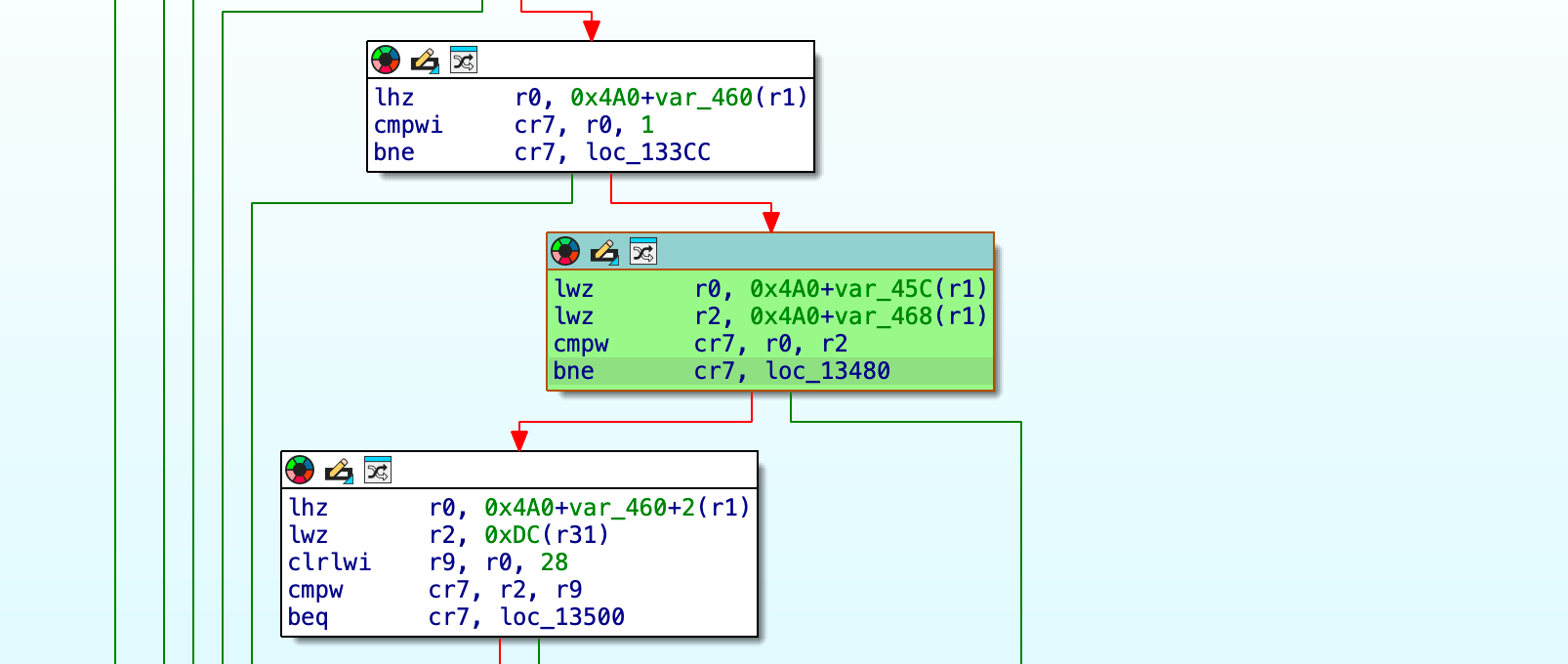
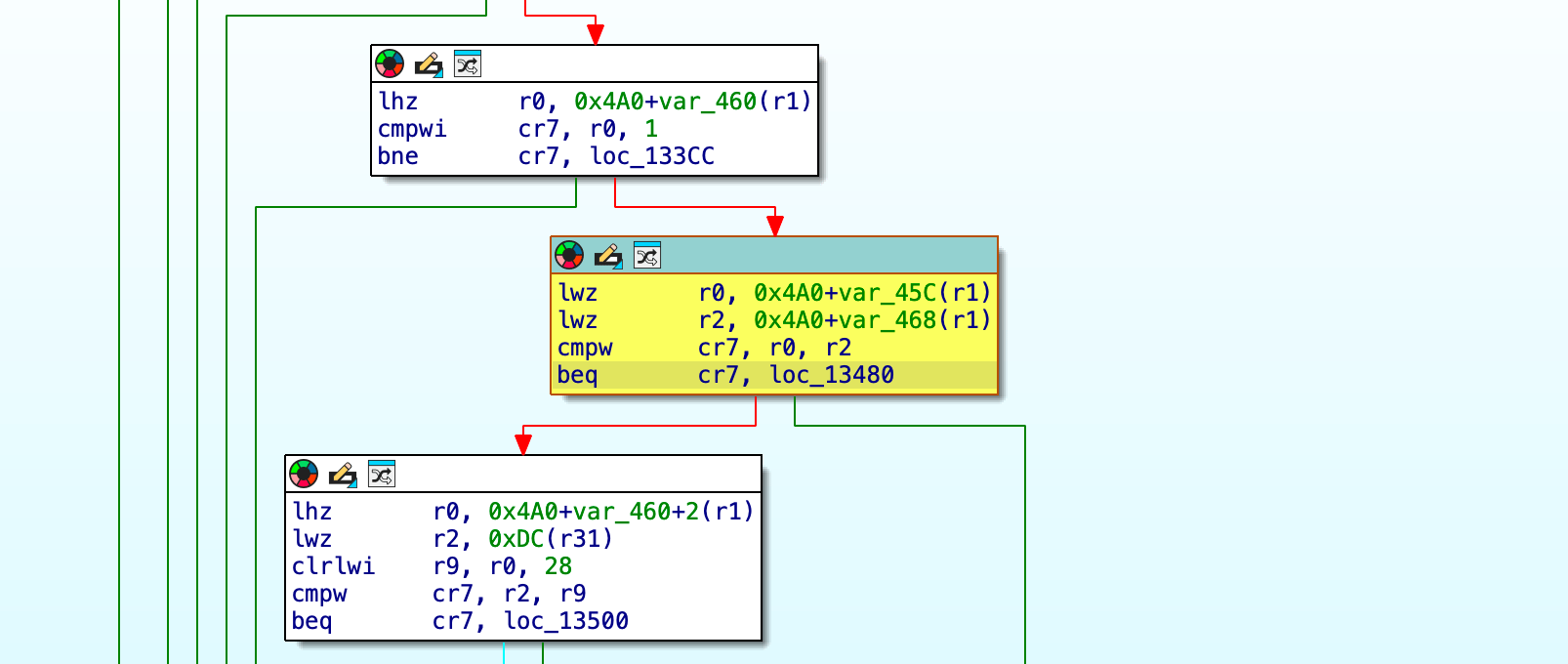
CorePlayer is one of the best and most optimized video players for OS X Leopard, and its binary can be patched and registered for perpetual use:
$ cd /Applications/CorePlayer.app/Contents/MacOS
$ cp CorePlayer CorePlayer_backup
$ echo 002B439C: 41 | xxd -r - CorePlayer
$ echo 002B4718: 41 | xxd -r - CorePlayer
$ echo 002B49B4: 41 | xxd -r - CorePlayer
$ echo 002FF070: 41 | xxd -r - CorePlayer
$ echo 0030F270: 41 | xxd -r - CorePlayer
$ echo 0031A310: 41 | xxd -r - CorePlayer
And register it using the SGULKB-UCZH1R-C8EUYU-F150UG-D8UGKK serial number.
iStat Menus
Download iStat Menus 3.19, unzip it and drag the .app into your Applications folder. It can be registered using the dull-cage-dawn-2199-3689922 serial number.
Tuxera NTFS
Download version 2015 and install it. Register using the 8ENKW-3P40Y-X02NZ-Y6FYP serial number.
Paragon ExtFS
Version 8.0 can be registered using the symmetry // CORE name and 10101-3A629-C4149-D3B5E serial number.
Little Snitch
Download and install version 2.5.4, register it using the 32SCDALRF0-715HA-5D7067ZY23 serial number.
A series is usually a collection of multiple website posts about the same subject and dependent of each others. This article is from the Apple iBook G4 series:


