My Apple iBook G4 - dual-booting Tiger/Leopard

This is the fourth part of the “My Apple iBook G4” series of articles, and it’s all about dual booting OS X (10.4) Tiger alongside OS X (10.5) Leopard on my iBook retrobook.
And a short article will it be, because everything is so simple: basically I want OS X (10.4) Tiger since I want to be able to run Classic Environment. The Classic Environment is a hardware and software abstraction layer in PowerPC versions of Mac OS X that allows most legacy applications compatible with Mac OS 9 to run on Mac OS X.
I spent quite a bit of time trying to patch the Leopard frameworks as to run Classic Environment, but it ain’t working. I have a separate Leopard install that’s more Tiger than Leopard and it still won’t load Classic. So, for now, dual-booting will have to do.
The Classic Environment can be loaded at login (for faster activation when needed later), on command, or whenever a Mac OS application that requires it is launched (to reduce the use of system resources when not needed). It requires a full version of Mac OS 9 to be installed on the system, and loads an instance of that OS in a sandbox environment, replacing some low-level system calls with equivalent calls to Mac OS X via updated system files and the Classic Support system enabler. This sandbox is used to launch all “classic” Mac OS applications, which means there is only one instance of the Classic process running for a given user.
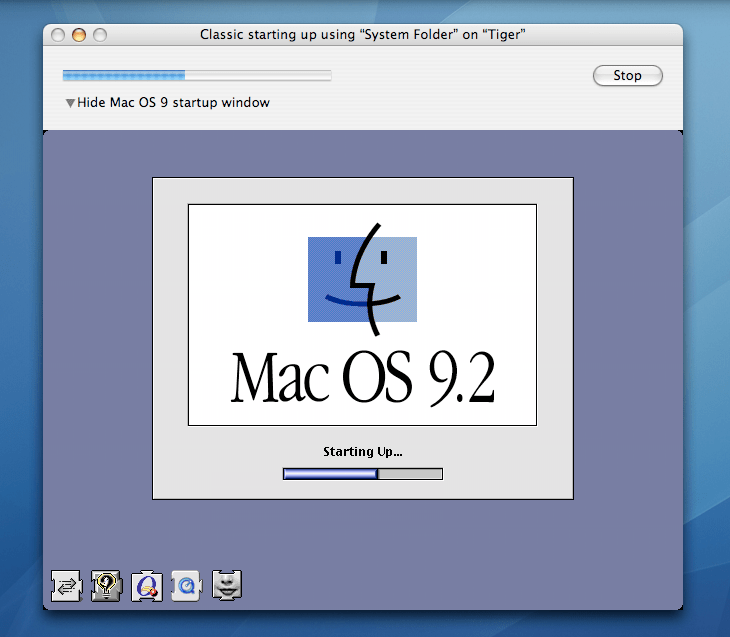
The internal SSD of my iBook already has a Leopard install, so just insert a Leopard DVD and reboot the iBook while keeping the Alt key pressed (so it goes into the boot selector, or you can keep pressing the C key to automatically boot using the CD/DVD). Select the Leopard DVD to boot from it and press Enter. Once in the setup open Disk Utility and repartition your disk, creating a new (and maybe smaller) partition where Tiger will be installed. I’m not using the Tiger DVD to do the partitioning because a bird told me that the Disk Utility in Tiger will format all partitions if you make any changes to the partition layout. And I really don’t want to lose my Leopard partition, so I cannot confirm that it’s true or not. Later updated: Andreas (82MHz) wrote me an email to specify that “Since you mentioned that you’re not sure if the Tiger disk utility in the installer will format all partitions on the drive - for me it didn’t. I had 10.6 installed, created a second partition in the Tiger installer and installed Tiger in there, and now both OSs coexist and dualboot happily. That’s on Intel though, and on a later version of Tiger (10.4.7), so who knows if that’s universally true and if it’s the same on PPC.”. So, using Tiger’s Disk Utility might not destroy your data on already-existing partitions.
After the partitioning is complete close Disk Utility, remove the Leopard DVD, insert a Tiger DVD and reboot the machine. Keep pressing Alt, select the Tiger DVD to boot from and continue the Tiger setup as normal, making sure you select the new partition you just created as the destination, else you’ll wreck the Leopard install. When the setup finishes and reboots your system, it will automatically boot into Tiger (you can change that from System Preferences in either Tiger or Leopard, if you want to boot automatically into Leopard).
Download the official Mac OS 9.2 installer and run it. Go into System Preferences, choose the Classic panel and configure the Classic Environment to your heart’s desire.

On reboot, if you want to select the OS to boot into, keep Alt pressed. That’s about it.
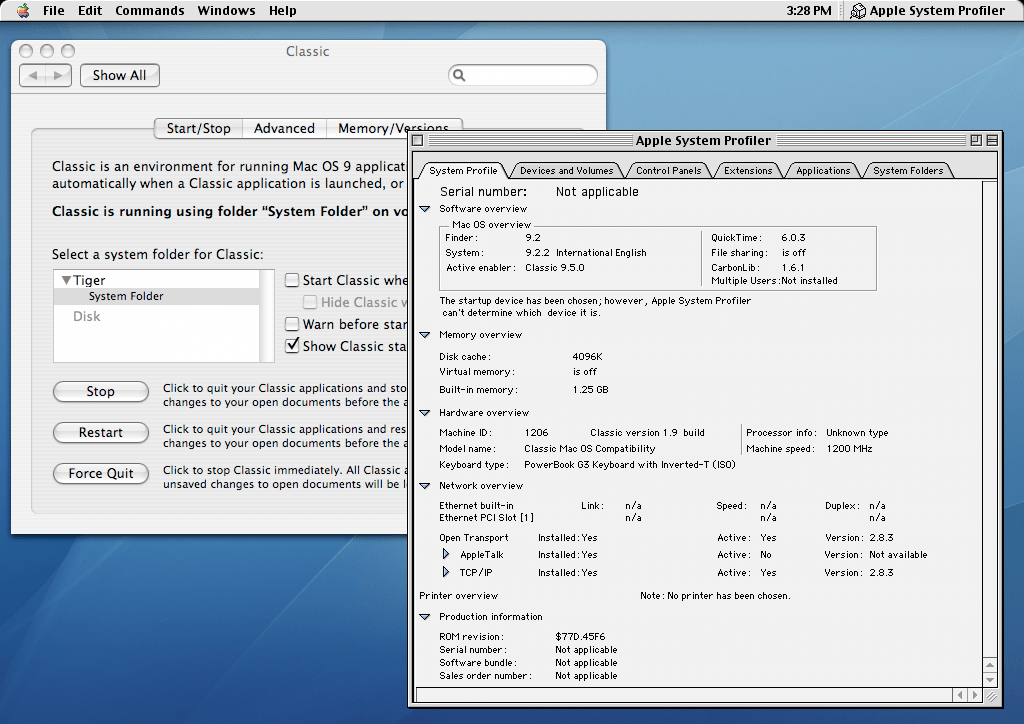
Now you can start installing Mac OS 9 applications and games.
A series is usually a collection of multiple website posts about the same subject and dependent of each others. This article is from the Apple iBook G4 series:
- My Apple iBook G4 - hardware upgrades
- My Apple iBook G4 - development
- My Apple iBook G4 - dual-booting Tiger/Leopard
- My Apple iBook G4 - games
- My Apple iBook G4 - software
- My Apple iBook G4


